Step 1: Download Official Image
Step 1
Download Installer
Click below to download the official Office 365 image:
Download Image Watch Video TutorialSecurity Tip: Ensure downloads are from official or trusted sources.
Step 2
Wait for Download
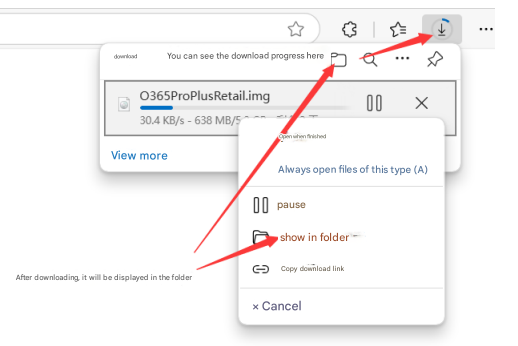
After download completes, click "Show in folder".
Step 2: Extract & Install
Step 3
Extract Files
If not automatically mounted: Right-click file → "Mount" or "Extract to current folder" (using 7-zip).
Step 4
Run Installer
Open extracted folder, run setup.
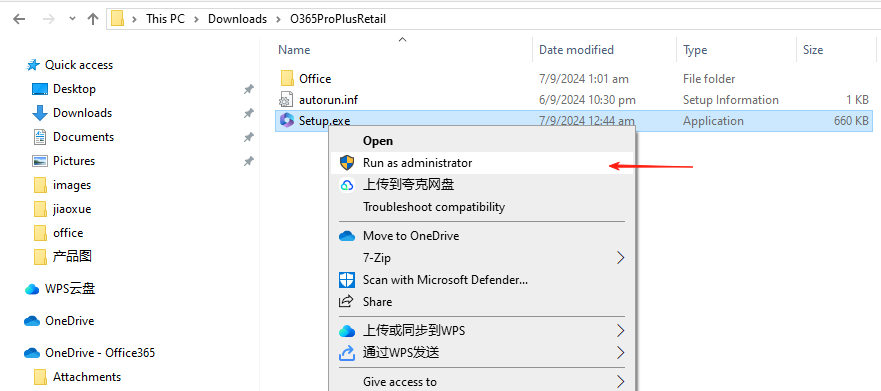
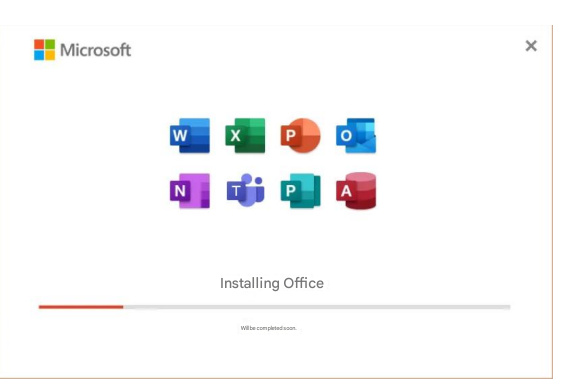
Installation takes 15–30 minutes. Stay connected to the internet.
Step 5
Finish Installation
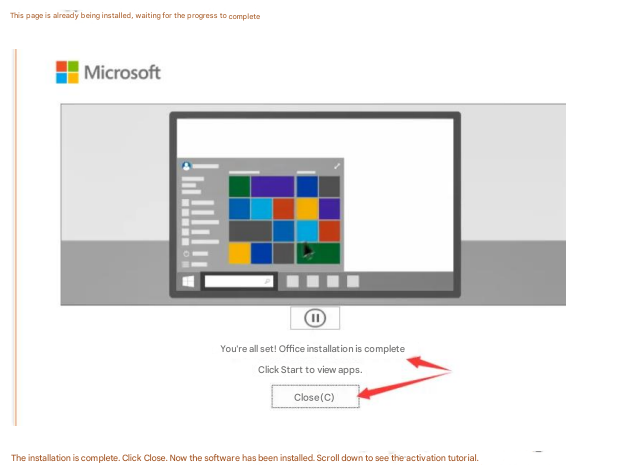
Click "Close".
Step 3: Activation
Step 6
Sign In
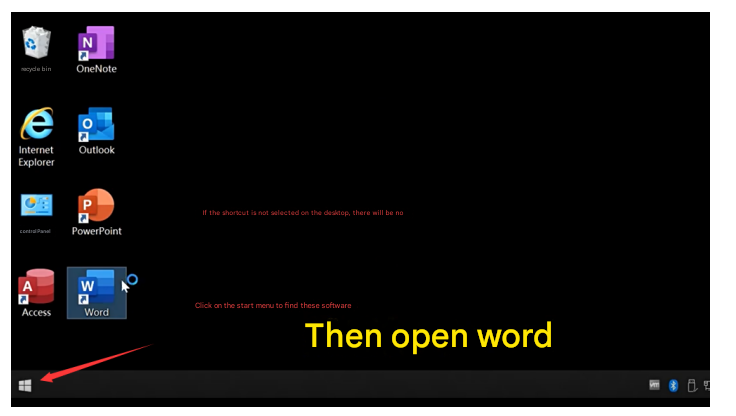
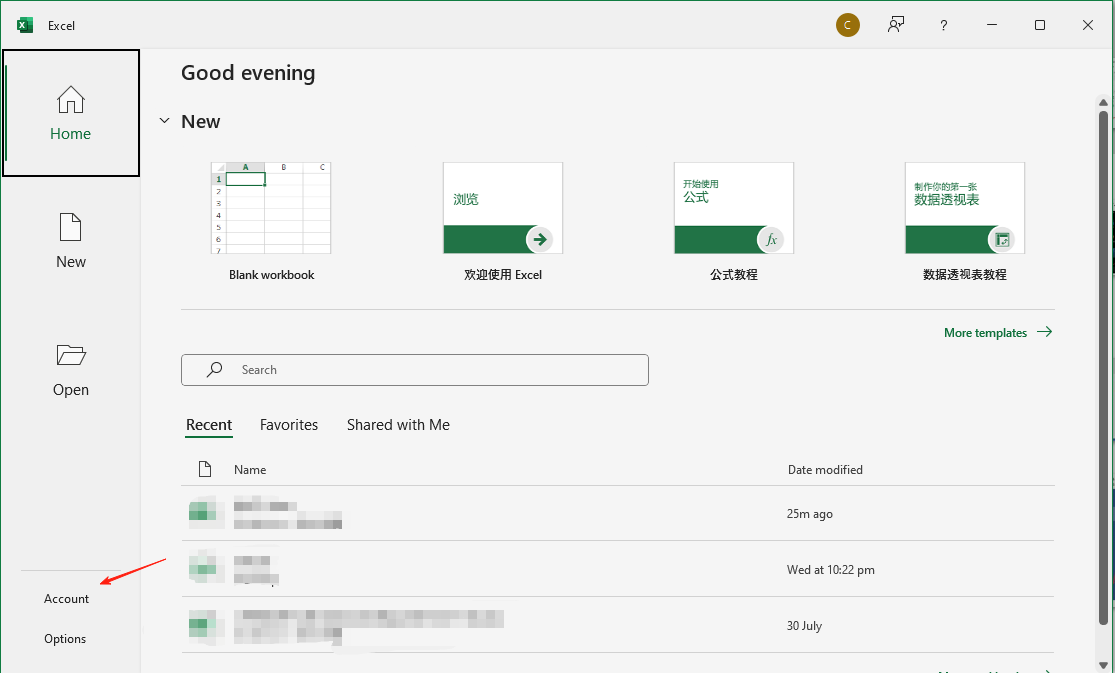
Open Word/Excel. Click "Sign in". Enter account & password provided.
Step 7
Change Password
If required (first login), change your password.
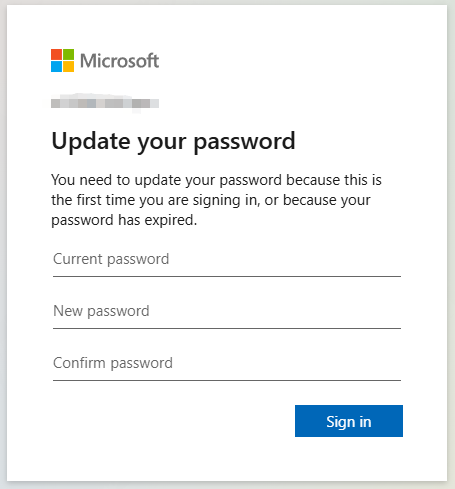
Requirements: 8+ chars, uppercase, lowercase, numbers. Different from old password.
Step 8
Verify
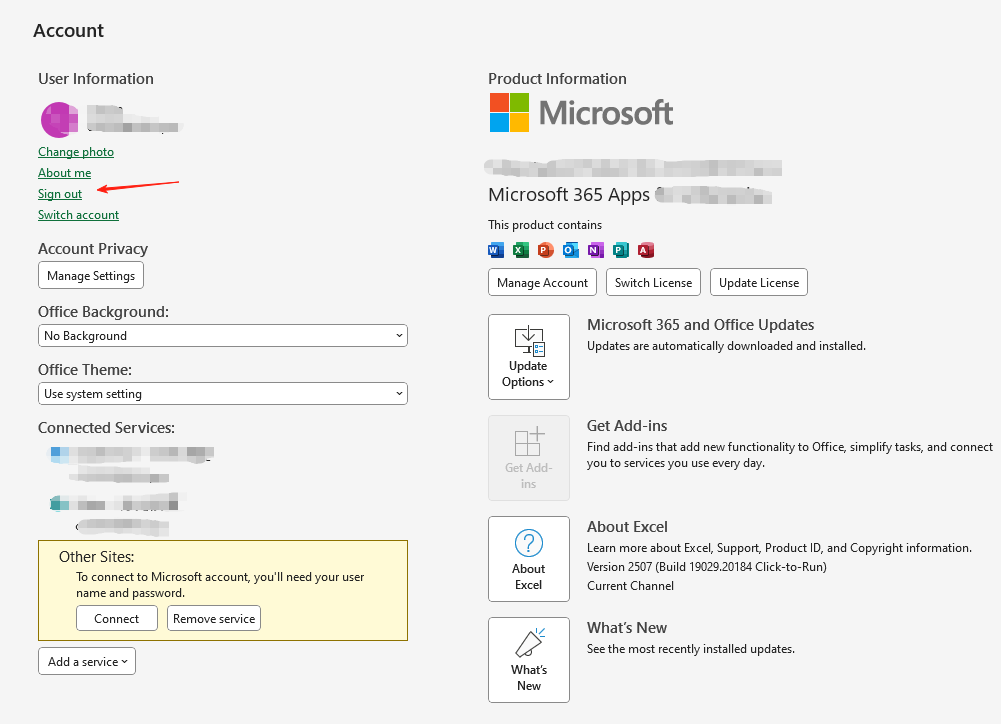
File → Account. Status should be: Activated.