Step 1: Download
Downloads
Select your version:
-
Office Professional Plus 2021
Direct Download Google Drive -
Office Professional Plus 2019
Direct Download Google Drive -
Office Professional Plus 2016
Direct Download Google Drive
Tip: Please download only the version you purchased.
Progress
Check Download
Wait for the download to finish, then select "Show in folder".
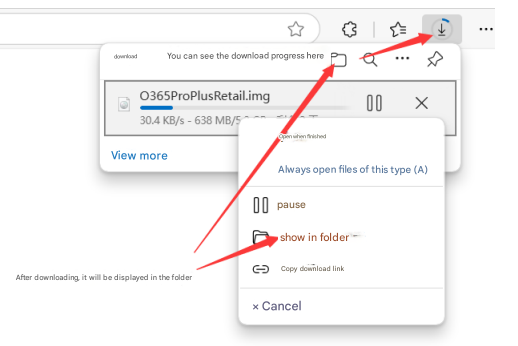
Note: The images below use an example package. Your filename will match the version you selected above.
Step 2: Extract & Install
Step 1
Extract
Right-click the downloaded file → "Mount" or "Extract to current folder" (requires 7-Zip).
Step 2
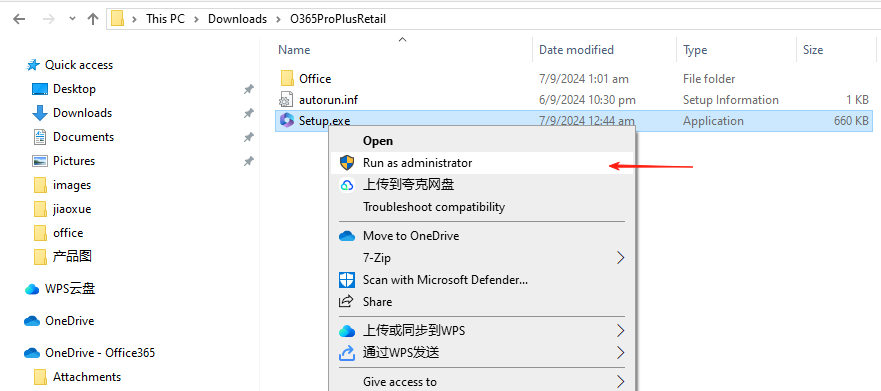
Run Setup
Right-click setup file → Run as administrator.
Step 3
Finish
Wait 15–30 minutes until you see the success screen.
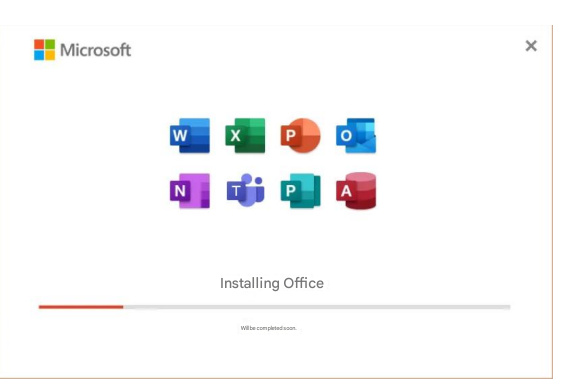
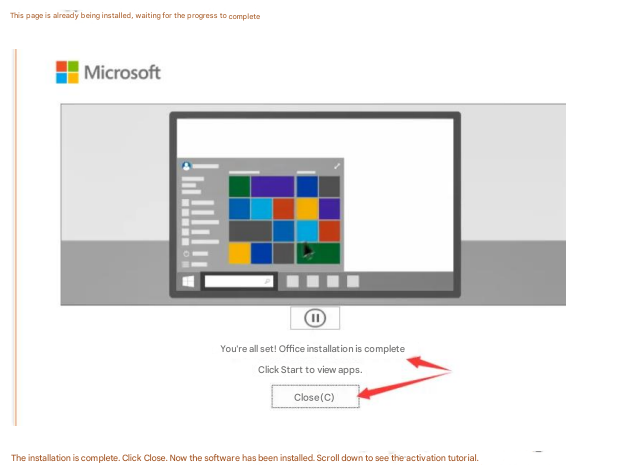
Click "Close".
Step 3: Activate
Step 1
Open App Watch video tutorial
Open Word or Excel.
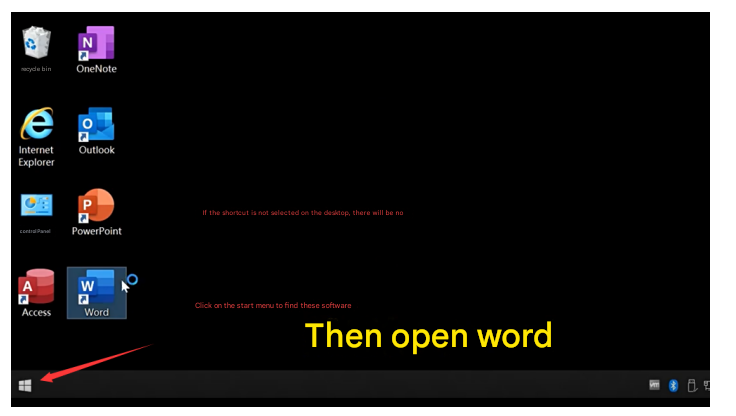
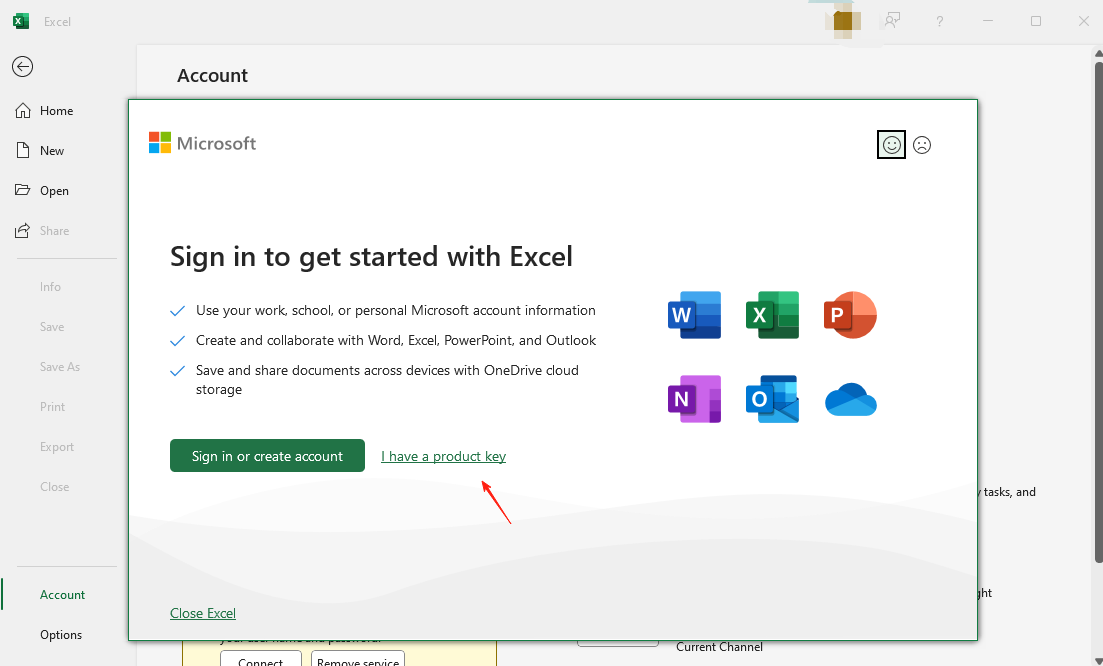
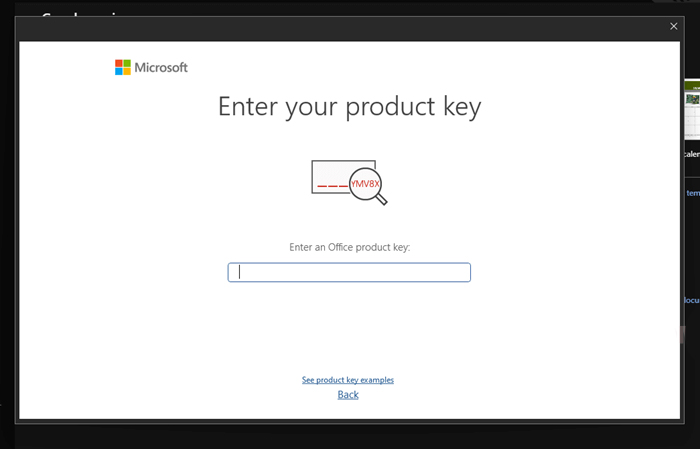
Tip: If prompted, click "I have a product key" and enter it.
Step 2
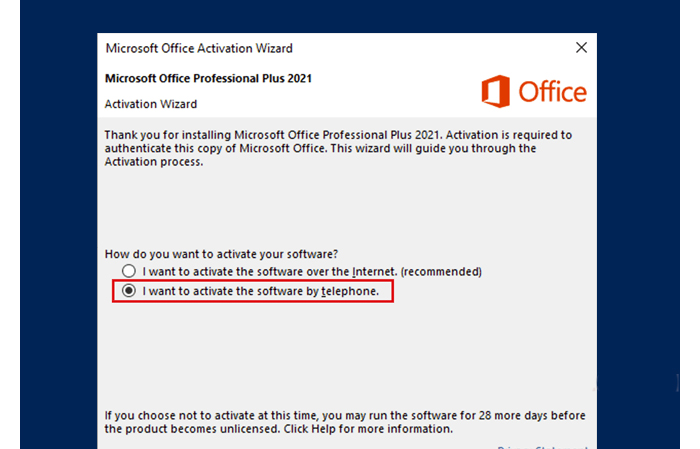
Telephone Activation
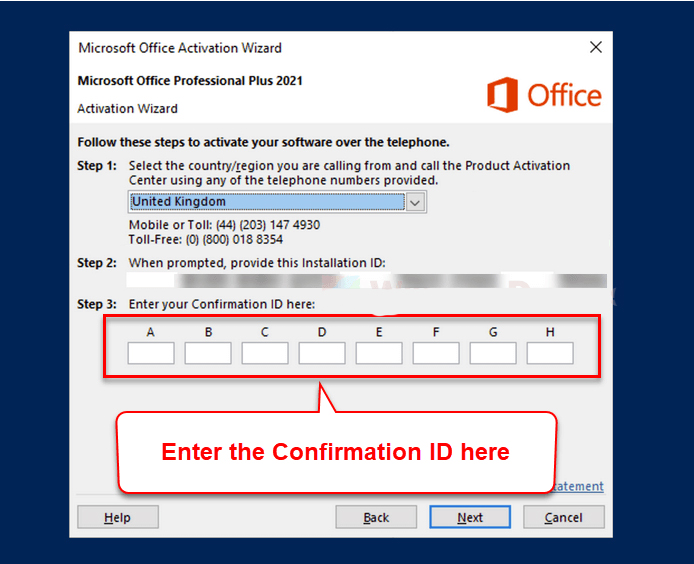
Close and reopen the app. Select "Telephone activation":
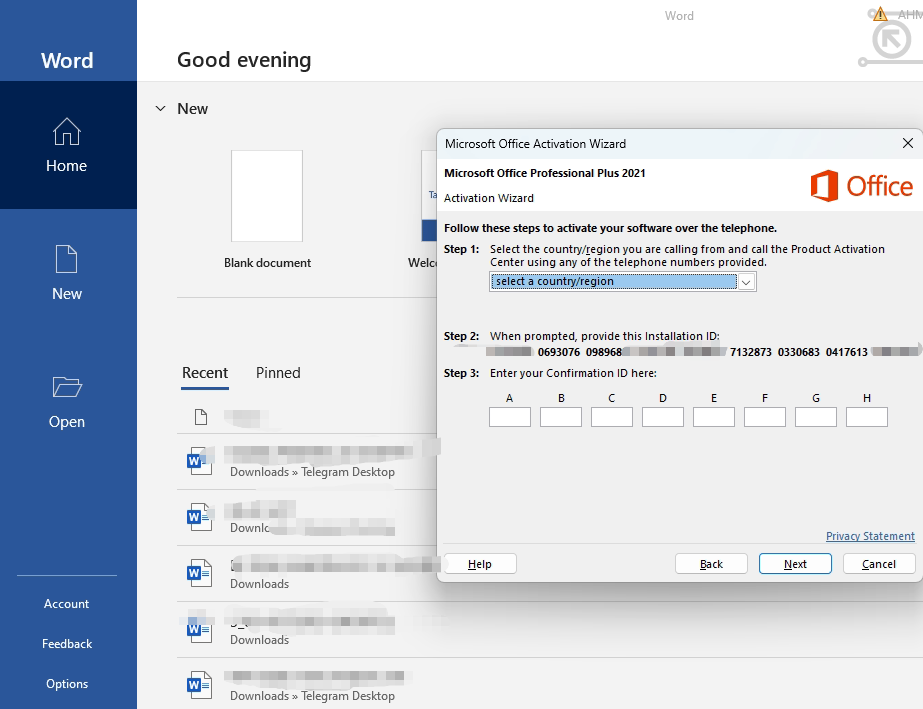
- Select country/region (Malaysia)
- Take a photo of the Installation ID (9 sets of numbers) and send it to customer service via WhatsApp.
Step 3
Complete
Enter the Confirmation ID provided by support. Restart the app.