Step 1: Download the Installation Tool
Step 1
Click to Download Office Tool Plus
Please click the button below to download the latest tool:
Download Office Tool Plus Now Note: Recommended Windows versions: Windows 11 / Windows 10
Step 2
Extract the Toolkit
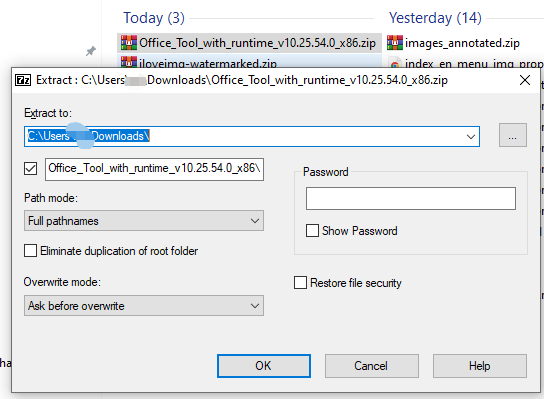
Find the archive in the Downloads folder and follow these steps:
Right-click the downloaded file and choose "Mount" or "Extract to current folder"

Step 2: Install Office 2024 LTSC
Step 1
Run the Installation Tool
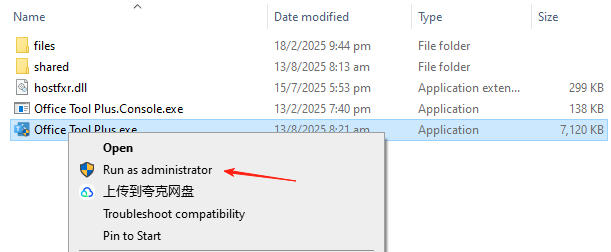
Enter the extracted folder, right-click Office Tool Plus.exe and select Run as administrator.
Important: Whether you have Office installed or not, click "Remove" once for a smooth installation.
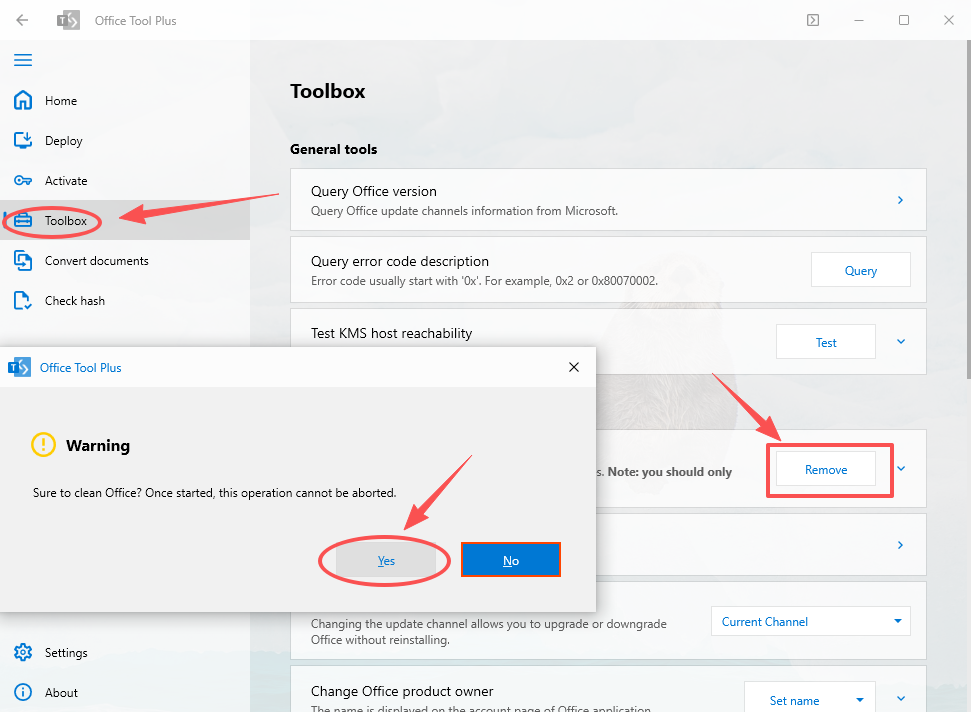
This process will take 30 seconds to 1 minute.
Step 2
Deploy Settings
In the tool's "Deploy" interface:
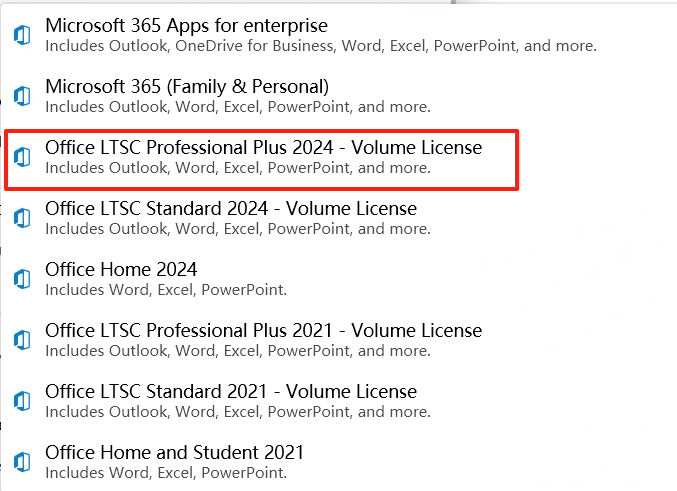
- Open “Home” -> Install Office
- Select "Microsoft Office LTSC Professional Plus 2024"
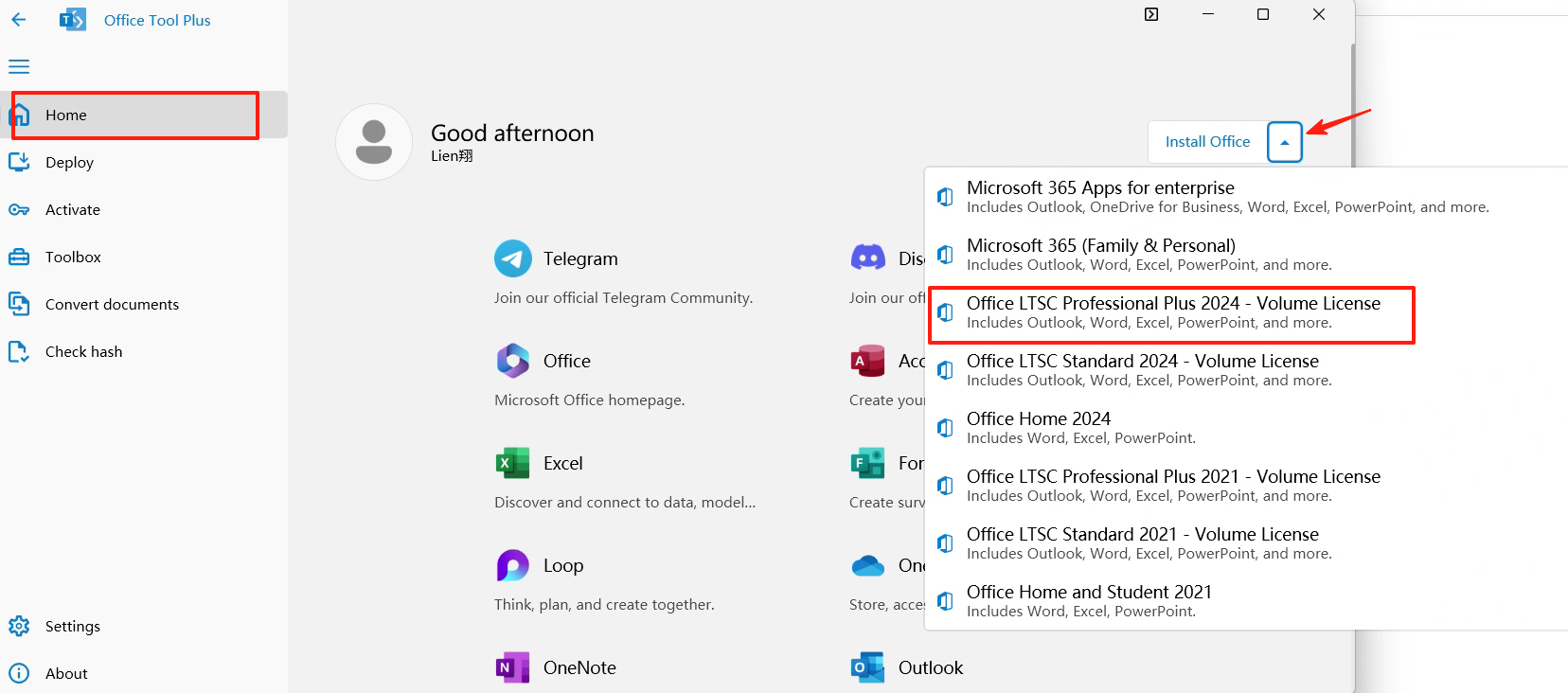
Important: Ensure specific version selection.
Step 3
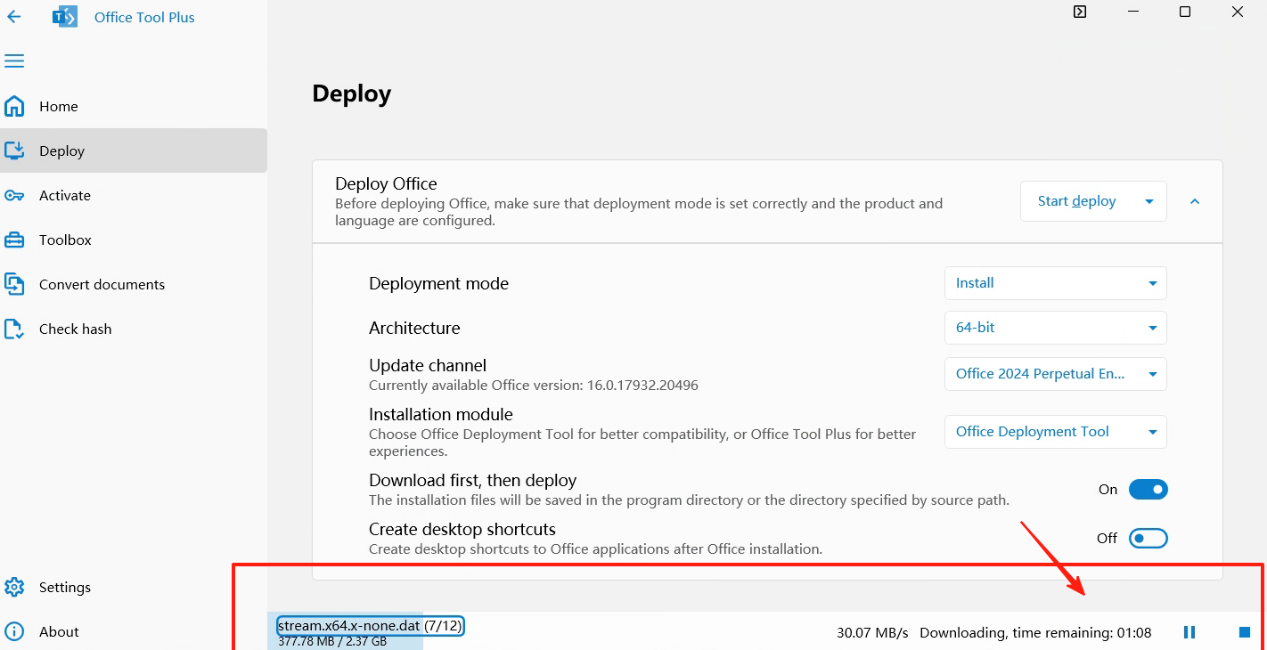
Start Installation
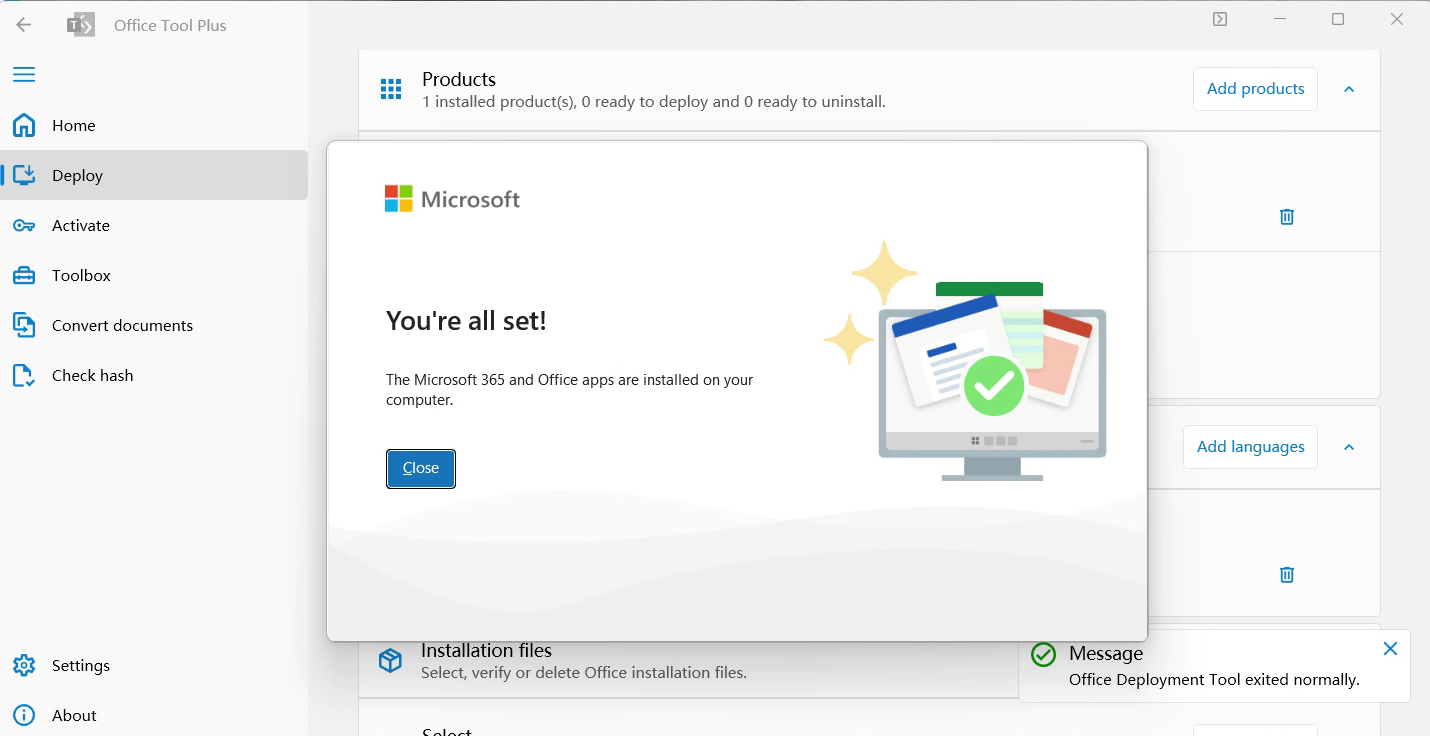
Click "Start Deployment". Wait 15–30 minutes.
Step 3: Activation and Verification
Step 2
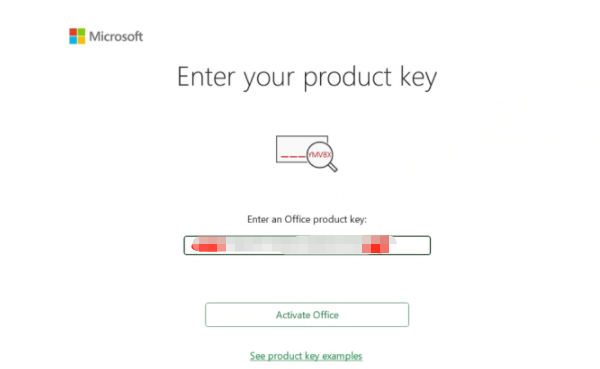
Enter Product Key
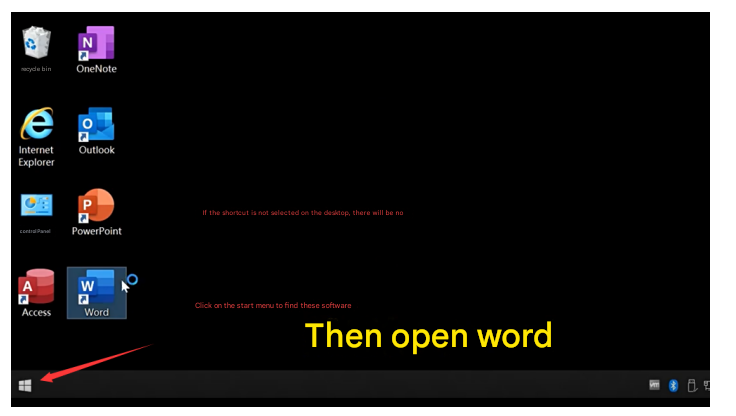
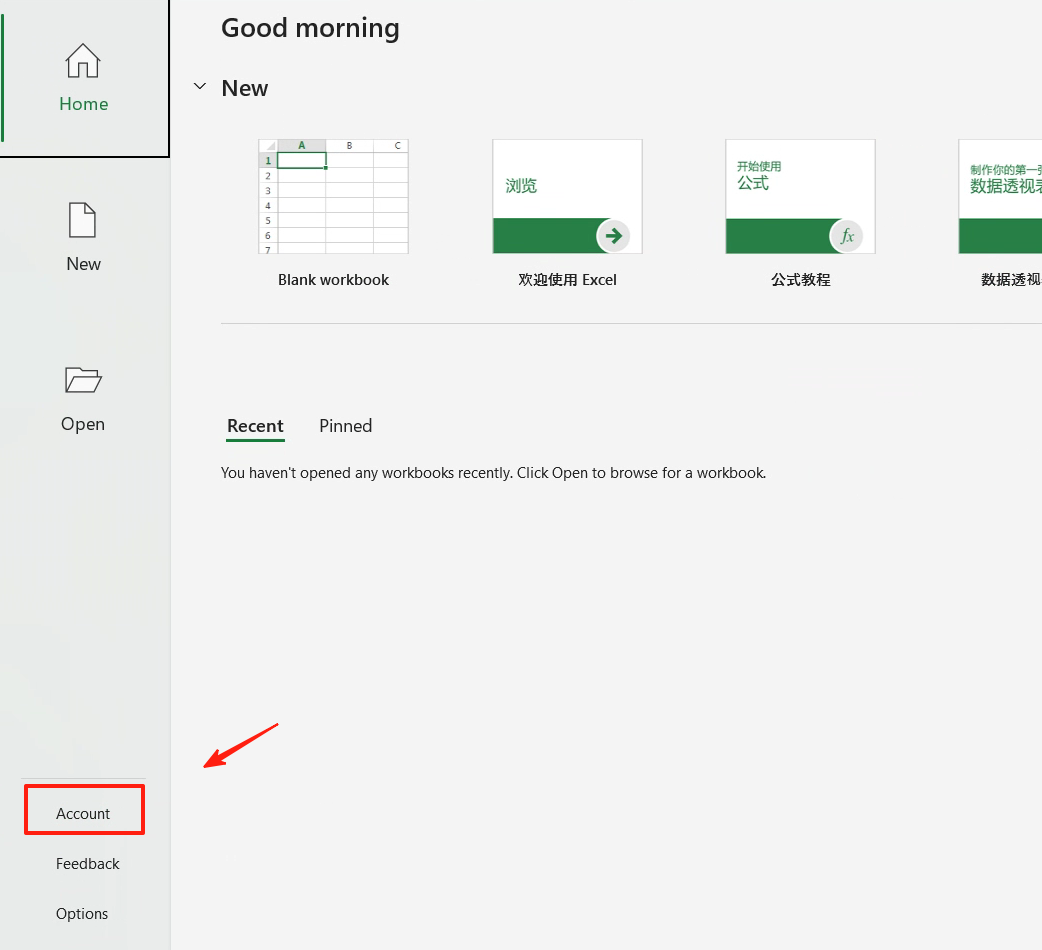
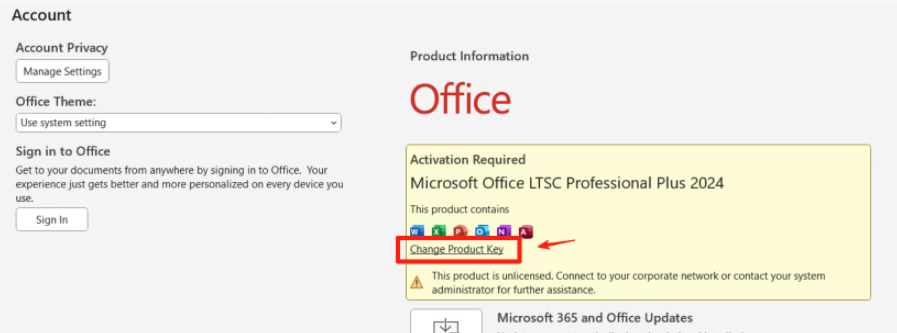
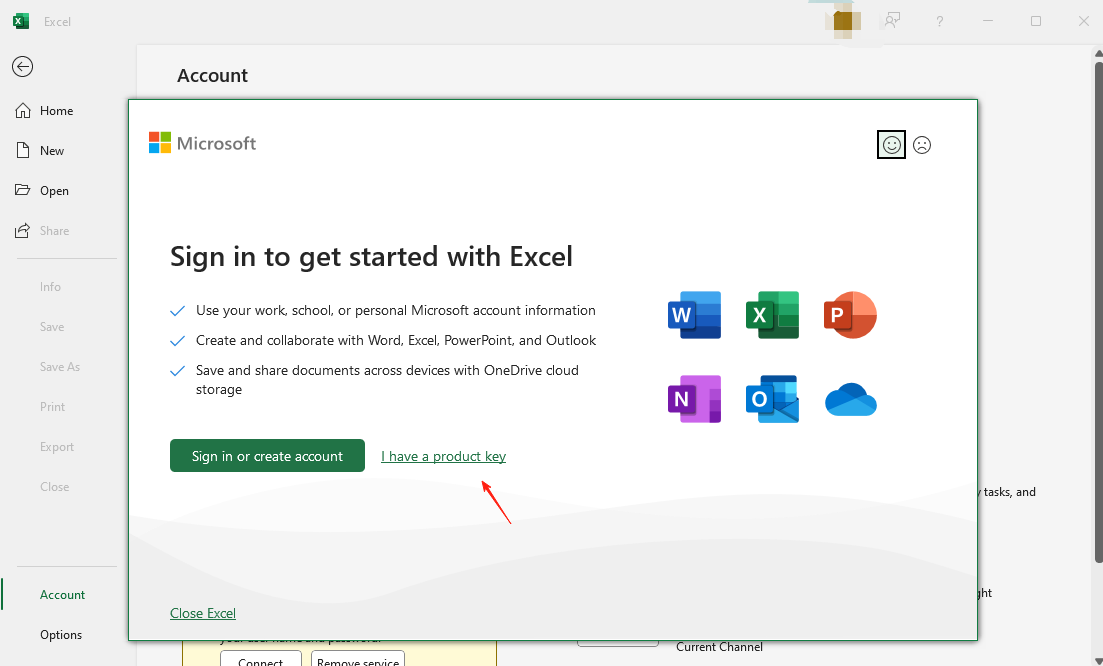
Click "File" → "Account" → "Change product key". Enter your key.
Step 3
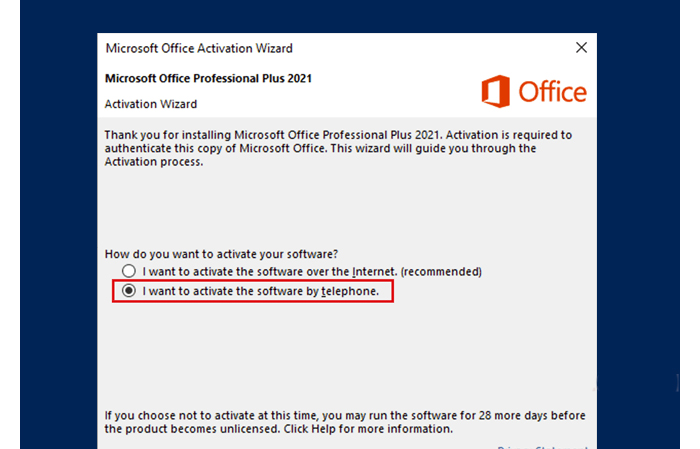
Telephone Activation Wizard
Close and reopen the app. Select "Telephone activation":
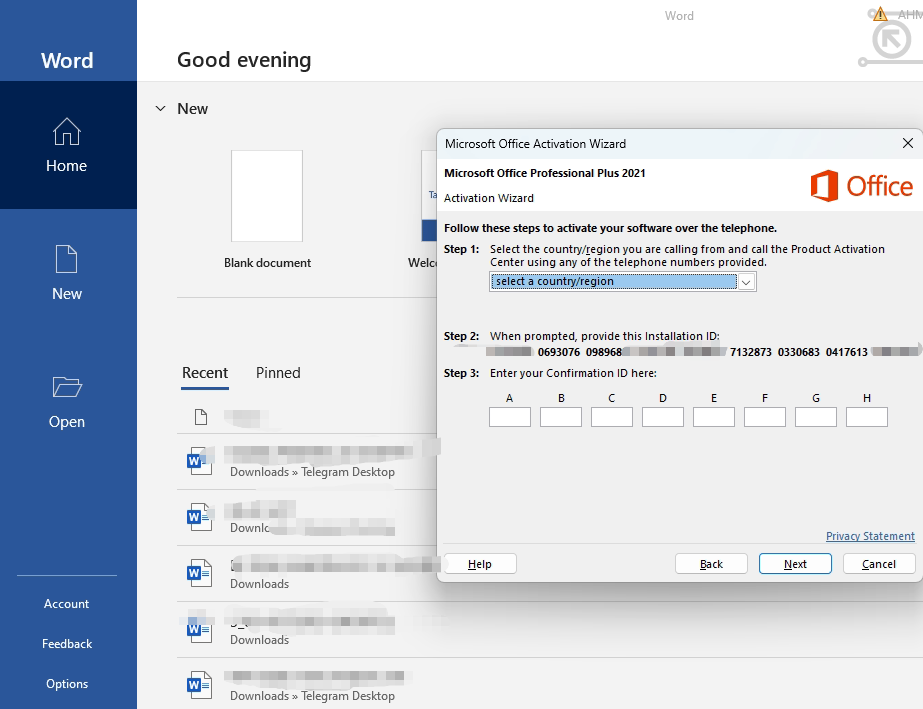
- Select country/region (Malaysia)
- Send the 9 sets of numbers (Installation ID) to customer service via WhatsApp.
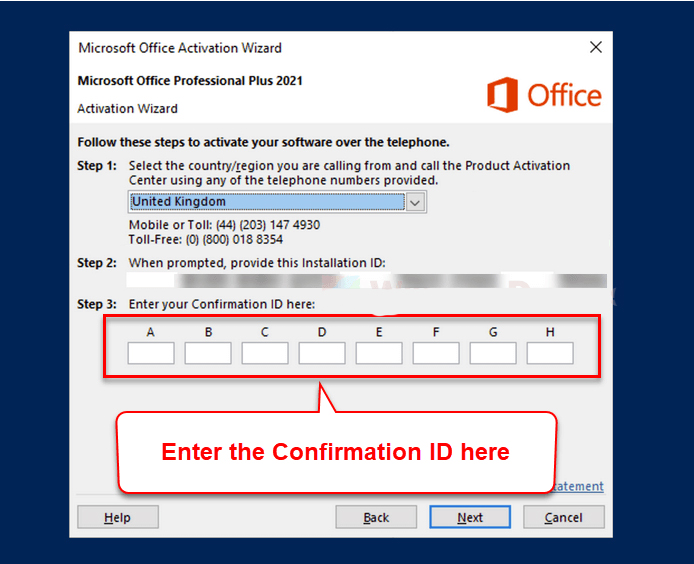
Enter the Confirmation ID provided by support:
Statement: If you encounter errors, contact customer service immediately!